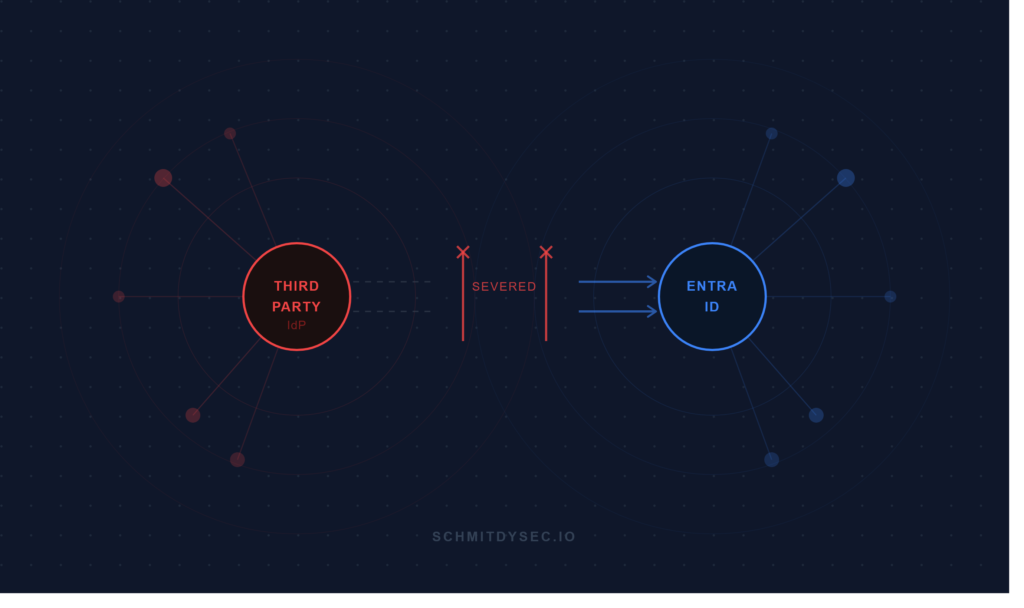
It seems like weekly now, I’m being pulled into conversations with customers who want to “break up” with their third-party identity provider (IdP). And honestly? I don’t blame them. Some organizations are seeing price increases of 20-50% on IdP renewals, and when you’re already paying for a Microsoft E3 or E5 license, it gets hard to justify a separate IdP bill for features you’re largely already paying for.
Don’t get me wrong, it’s not a 1:1 feature map between Okta, CyberArk Identity, Duo, and Entra ID. Some third-party IdPs have capabilities that genuinely earn their price tag for certain organizations. Others? Not so much. And more and more, organizations of all sizes are landing on “no more.”
So the decision’s been made: you’re de-federating. Now what? Whether you’re a consultant guiding a customer through this or the IT admin at your own organization doing it yourself, this guide is for you.
This guide focuses on hybrid environments with Entra Connect in place, which covers the majority of de-federation scenarios we see in practice. If your environment is cloud-only with no Entra Connect, the Entra ID steps for converting the domain are the same, but PHS and Staged Rollout don’t apply, your users will move directly to native Entra ID cloud authentication.
These are the items we’re going to talk about:
1.) What is federation?
2.) What is De-federation?
3.) How to prepare for de-federation
4.) How start de-federating
5.) How to cut over

What is Federation?
Before we talk about removing federation, it helps to understand what it’s actually doing. When your Entra ID domain is federated to a third-party IdP, Entra ID is not the one validating your credentials. Instead, when a user tries to sign in, Entra ID recognizes the domain, puts up a “not my problem” sign, and redirects the authentication request to your external IdP. The IdP validates the credentials, hands a token back to Entra ID, and Entra ID trusts it. Your external IdP is the authority, Entra is just along for the ride.
Federation between Entra ID and a third-party IdP is a formal trust relationship, typically established using SAML 2.0 or WS-Federation. Think of it like a contract between two parties, Entra ID agrees to trust whatever the external IdP says about a user’s identity. When you de-federate, that contract is torn up.
Any user whose domain hasn’t been converted to managed authentication (we’ll cover exactly what that means later) will fail to sign in. Any application still expecting the old IdP to vouch for users will break. This is why de-federation isn’t something you do on a Tuesday afternoon and hope for the best, the blast radius of doing it unprepared is everyone in that domain being locked out simultaneously.
What is De-federating?
De-federating itself is conceptually simple: you’re telling Entra ID “stop redirecting my users to that external IdP and authenticate them yourself.” But simple doesn’t mean painless.
When you de-federate a domain, you’re moving users to one of two managed authentication methods in Entra ID. Picking the right one before you start matters, because switching later is more work than getting it right the first time.
Password Hash Sync (PHS), this is the most common authentication method for de-federation migrations, and for most organizations, it’s the right call. With PHS, Entra Connect syncs a hash of the user’s password hash (yes, a hash of a hash) from your on-premises Active Directory to Entra ID. Authentication happens directly in the cloud, with no on-premises dependency at sign-in time. Basically what this means is that if your on-premises environment has a bad day, your users can still log in to M365.
Pass-Through Authentication (PTA), with PTA, password hashes never leave your on-premises environment. Instead, a lightweight agent sitting on-premises validates credentials against your local AD in real time and passes the result back to Entra ID. Some organizations prefer this for data residency or compliance reasons, but it introduces an on-premises dependency at authentication time. Microsoft recommends deploying multiple PTA agents for redundancy, a single agent is a single point of failure, and if it goes down, so does authentication for your users. Which means no login to M365 and you just know that will happen when the CEO is trying to do something.
For most organizations reading this guide, PHS is where you’re landing. It’s the simpler, more resilient option and the one we’ll focus on through the rest of this article. Though 90% of this will be the exact same between PHS and PTA.
For every user, de-federation means a new sign-in page, a different MFA method, a different login experience, and a different app portal. That’s a lot of change hitting at once if you haven’t prepared them for it.
De-federating requires a lot of prep work. If you’ve ever painted a house, a car, or a cow, you know that 90% of the work is in the prep. The same rule applies here. Prep work involves:
- Migrating applications to Entra ID
- Getting users enrolled in the new MFA method
- Creating onboarding documentation and user training materials
- Recreating your security policies as closely as possible in Entra ID (Conditional Access, etc.)
- Reviewing and potentially rebuilding your group structure
- Converting automation that authenticates against the old IdP
- Exporting logs to your SIEM/SOAR solution
- …and more, depending on what else your current IdP is doing
That’s a lot of ground to cover, and we haven’t even gotten to the fun part yet. Let’s talk about how to actually prepare for this.
How to prepare for de-federation
De-federating requires quite a few moving parts to get right. The two biggest ones are almost always the same: getting your users ready to authenticate against Entra ID, and migrating your applications from the third-party IdP to Entra ID, if they aren’t already registered there.
Let’s first talk about getting users ready to authenticate against Entra ID. Most of this work comes down to one thing: getting users enrolled in a new MFA method. There’s a right way to do this and a Hail Mary way.
The right way is to have users navigate to their My Sign-Ins page and register whatever MFA method your organization is allowing. Whether that’s the Authenticator app, synced passkeys, FIDO2 keys, SMS, or something else — the user needs to go there and set it up themselves. From experience, you cannot rely on a Registration Campaign for this, because it simply does not work reliably.
The reason Registration Campaigns don’t fire is simple. When a user signs in, Entra ID recognizes the federated domain and redirects them to the third-party IdP. The IdP authenticates them and hands them back to Entra ID with a token. Entra ID never had a chance to interrupt the flow and prompt for registration. We have seen it fire for the occasional user, but never in any reliable or predictable way. Don’t count on it.
The Hail Mary? Cut over first and force everyone through MFA registration on their next login, as long as you’re not requiring phishing-resistant MFA on day one. Phishing-resistant methods like FIDO2 keys and certificates require physical setup or provisioning ahead of time, you can’t register them on the fly at a login prompt the way you can with the Authenticator app. This approach is only advisable if you hate yourself, hate your job, or both. If that describes you, more power to you. Otherwise, stick with option one.
Migrating apps will take the longest, but before you start migrating 300 applications, stop and ask yourself: do you actually need all of them? In every de-federation I’ve been part of, at least a third of the apps turned out to be unused, some hadn’t seen a login in months, others in years. Inventory your apps first and verify they’re still actively used. There’s no point spending engineering time migrating something nobody is logging into.
Choosing Your Authentication Method: PHS or PTA
Before you do anything else, you need to decide how users will authenticate after de-federation: Password Hash Sync (PHS) or Pass-Through Authentication (PTA). We covered what each one does earlier, but the decision needs to be made and confirmed before prep work begins, because everything else you configure will be built around it. Microsoft recommends PHS for most organizations, and so do I. It’s simpler, more resilient, and removes the on-premises dependency at authentication time. If your organization has specific data residency or compliance requirements that rule out syncing password hashes to the cloud, PTA is your path. Otherwise, PHS is the right call. Once you’ve made the decision, verify it’s enabled and configured in Entra Connect before moving forward.
PHS only requires two straightforward configurations:
- Enable Password Hash Sync in Entra Connect under Optional Features
- Confirm a full PHS cycle has completed so all password hashes are synced to Entra ID before you do anything else
Important: Make sure you're enabling Password Hash Sync under "Optional Features" in Entra Connect, not under "User Sign-In." Changing the User Sign-In method could convert your domains from federated to managed immediately.
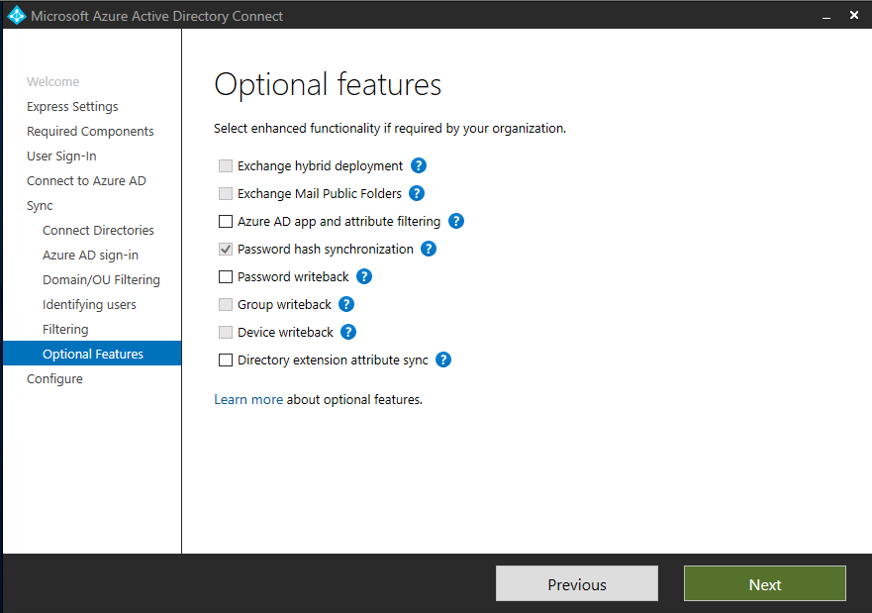
That’s it. Two steps. PHS is genuinely the simpler path.
PTA requires a bit more legwork:
- Identify a server running Windows Server 2012 R2 or later to host the PTA agent — not the Entra Connect server itself. The server needs to be domain-joined and have outbound connectivity to Entra ID. Check Microsoft’s prerequisites for the specific ports and URLs required before you start.
- Download and install the Microsoft Entra Connect authentication agent on that server
- Install additional agents on separate servers for high availability. Microsoft recommends two to three agents for most organizations, with a maximum of 12.
- Configure Smart Lockout settings to protect against on-premises AD account lockouts from bad actors
For both PHS and PTA:
- Enable Seamless SSO on your Active Directory forests via PowerShell if you have Windows 7 or 8.1 domain-joined devices in your environment. Windows 10 and later handles SSO natively via Primary Refresh Token (PRT) and doesn’t need Seamless SSO.
For the full step-by-step configuration of either method, refer to Microsoft’s Staged Rollout documentation.
Conditional Access
Before you cut over, you need to make sure your Conditional Access policies are in place and validated in Entra ID. Whatever your old IdP was enforcing, MFA requirements, device trust, location-based restrictions, legacy authentication blocking, none of that migrates automatically. You’re starting with a blank slate on the Entra ID side, and cutting over without CA policies in place means cutting over with less security than you had before. That’s not a great look.
Take inventory of what your old IdP was enforcing and recreate those policies in Conditional Access before you touch anything else. Put them in Report-Only mode first so you can validate they’re behaving as expected against your user population before they’re enforced for real. Pay special attention to legacy authentication blocking, it’s easy to overlook and often was being handled quietly by the old IdP without anyone realizing it.
If you’re new to Conditional Access or want a deeper dive into policy design, check out our Conditional Access Boot Camp article which covers policy structure, the AND/OR logic that trips people up, and how to validate policies before enforcement.
How to Start De-Federating
Now that prep work is done, it’s time to actually start moving users off the old IdP. The good news is you don’t have to flip a switch and hope for the best. Entra ID has a feature called Staged Rollout that lets you move specific groups of users to managed authentication without converting the entire domain. Think of it as a controlled experiment, you pick a pilot group, move them over, validate the experience, and expand from there. The rest of your users stay on federated authentication the entire time, completely unaffected.
This is important: Staged Rollout is a temporary testing mechanism, not a permanent state. Microsoft is explicit about this in their documentation. Though I had a tenant sit in staged de-federation for a few months and they were totally fine. So just keep this in mind.
Enabling Staged Rollout
To enable Staged Rollout, navigate to the Entra admin center and go to:
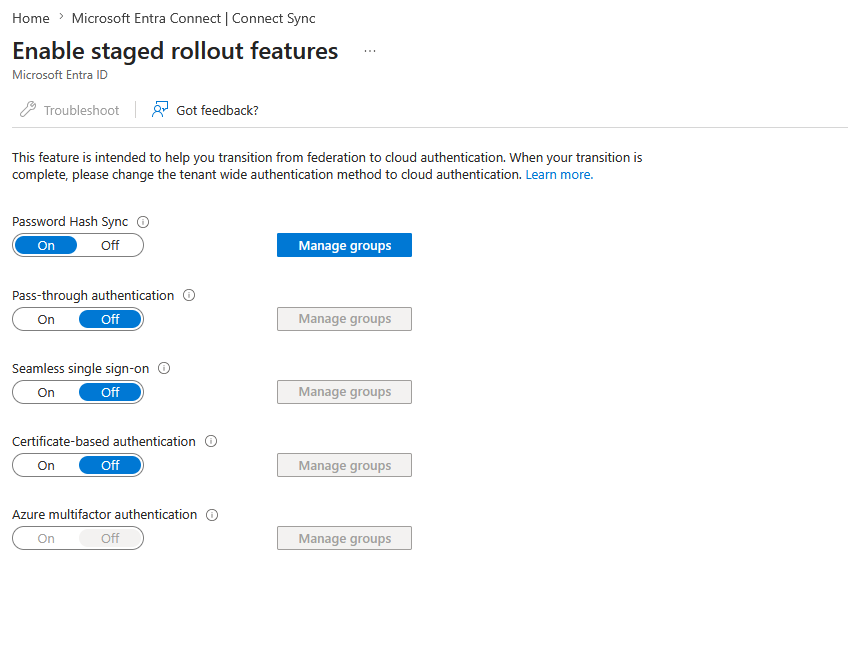
Entra ID > Entra Connect > Connect Sync > Enable staged rollout for managed user sign-in
From there, enable the toggle for whichever authentication method you chose earlier, PHS or PTA. You’ll also see toggles for Seamless SSO and CBA here. Once enabled, you’ll add a security group containing your pilot users.
A few group rules you need to know before you add anyone:
- When you first assign a group to Staged Rollout, it cannot have more than 200 members. Entra ID will block the assignment if the group exceeds that limit. Start with 200 or fewer, let it process, and then you can expand the group up to 50,000 users.
- Maximum of 10 groups per feature
- Nested groups are not supported
- Dynamic groups are not supported
- Use cloud security groups rather than on-premises AD security groups to avoid sync latency
Once a user is added to the Staged Rollout group, their authentication will transition from federated to managed, but not immediately. They’ll complete one more sign-in through the old IdP first, and after that their subsequent logins will go directly to Entra ID. Don’t let this catch you off guard during validation, if your pilot user signs in and still gets redirected to the old IdP, that’s expected behavior on the first go. The second sign-in is where you’ll see the change.
What to validate per pilot user:
- Sign-in completes successfully against Entra ID
- MFA prompt fires and completes correctly
- Apps registered in Entra ID are accessible via MyApps
- Sign-in logs in Entra ID show the expected authentication method (PHS or PTA)
- No unexpected fallback to federated authentication
Once your pilot group is healthy and you’re confident in the configuration, expand the group gradually before committing to the full domain cutover in the next section.
You’re probably asking yourself: “Can’t I just slowly move all my users into Staged Rollout, then do the cutover and it’ll be seamless for them?” Yes, you can, and that’s exactly what we’re getting into next.
Once your pilot group has confirmed everything is working properly, it’s time to expand. I personally like to move users into the Staged Rollout group slowly over the course of a few days to weeks, rather than doing it all at once. This gives you time to catch issues with specific user groups, departments, or device types before they become everyone’s problem. Once all users are in the group and things have been stable for a few days, you’re in good shape to move to the full domain cutover.
One thing to be aware of during this period: Self-Service Password Reset (SSPR) is unreliable while users are in Staged Rollout. The Microsoft docs acknowledge this, SSPR with writeback to on-premises AD isn’t guaranteed to work consistently while Staged Rollout is active. In practice this means password resets may work for some users and silently fail for others. Make sure your helpdesk knows this before you start expanding the group, and have a manual password reset process ready for the duration.
How to Cut Over
You’ve done the prep work, you’ve validated your pilot group, and you’ve slowly moved all your users into Staged Rollout with everything looking good. Now it’s time to make it official. The domain cutover is what we’ve been working towards. Once you convert the domain from federated to managed, users are authenticating against Entra ID. There’s no more redirection to the old IdP. But since all users are in the Staged Rollout group, it’ll be like nothing changed. Side note, create a few test users or identify a few test users who won’t be in the staged de-federation group for when you do the cut over.
Schedule Your Maintenance Window
Plan your cutover during off-business hours. Microsoft explicitly recommends this in their documentation in case you need to roll back. Make sure you have at least two hours blocked, the right people on a call, and a rollback plan ready before you start.
One thing worth planning for: because your users are already in the Staged Rollout group, they’ll be able to authenticate normally during the conversion window. Entra ID is already handling their authentication, so the domain conversion doesn’t disrupt them. However, any users who weren’t added to the Staged Rollout group will experience an authentication outage while the conversion propagates. This is another reason to make sure all users are in the Staged Rollout group before you schedule cutover.
It’s also worth keeping a small number of test accounts outside the Staged Rollout group intentionally. Once the domain is converted, users in the Staged Rollout group won’t give you an accurate picture of the post-conversion login experience, they were already on managed auth before the conversion happened. Your out-of-group test accounts will show you exactly what a fresh post-conversion login looks like, which is what you actually need to validate.
Microsoft’s documentation notes the domain conversion process can take up to 60 minutes, during which users may not be prompted for credentials on new logins to browser-based applications. In practice I’ve seen it take significantly longer, 12 to 16 hours in some cases for large organizations. Plan for it and set expectations with your team before you start.
Back Up Your Federation Settings
Before you run a single conversion command, you need a copy of your current federation settings. This is your rollback safety net. If the cutover goes sideways and you need to re-federate the domain, these settings are what you’ll need to do it. Don’t skip this step.
Run the following command to capture your current federation configuration:
Get-MgDomainFederationConfiguration -DomainId yourdomain.comCode language: PowerShell (powershell)Review the output and make note of the key properties, particularly IssuerUri, PassiveSignInUri, ActiveSignInUri, SigningCertificate, PreferredAuthenticationProtocol, and FederatedIdpMfaBehavior. Then export the whole thing to a JSON file somewhere safe:
Get-MgDomainFederationConfiguration -DomainId yourdomain.com | ConvertTo-Json | Out-File "C:\temp\federation-backup-yourdomain.json"Code language: PowerShell (powershell)Do this for every domain you’re converting and keep the backup files somewhere accessible to the whole team, not just on the server you’re running the commands from. If that server has a problem during the cutover window, you want those files reachable from somewhere else.
If you need to roll back and re-federate the domain, the command is:
New-MgDomainFederationConfiguration -DomainId yourdomain.com -IssuerUri "(IssuerUri from backup)" -PassiveSignInUri "(PassiveSignInUri from backup)" -ActiveSignInUri "(ActiveSignInUri from backup)" -SigningCertificate "(SigningCertificate from backup)"-PreferredAuthenticationProtocol "(Protocol from backup)"Code language: PowerShell (powershell)Important: If your IdP’s signing certificate has rotated between when you took the backup and when you need to use it, the rollback command will fail. If you run into that, the certificate is the first thing to check. Pull the current signing certificate from your IdP and use that instead.
Cutover Checklist
Everything on this list should be true before you start the conversion. If anything isn’t checked off, stop and fix it first. Cutover day is not the time to discover gaps.
- PHS sync is confirmed healthy and a full sync cycle has completed recently (if you’re using PHS)
- Federation settings are backed up and stored somewhere the whole team can reach
- All users are in Staged Rollout and have successfully authenticated against Entra ID at least once
- Out-of-group test accounts are ready for post-conversion validation
- Conditional Access policies are in place, validated, and enforced
- MFA enrollment is confirmed for all users, or if you’re doing the Hail Mary, godspeed
- Applications have been migrated to Entra ID and validated
- Break glass accounts are cloud-only and not federated, test them before you start
- Maintenance window is scheduled with the right people on a call
- Rollback plan is documented and federation backup files are accessible
The Domain Conversion
Since you’re de-federating from a third-party IdP rather than AD FS, your federation was almost certainly configured outside of Entra Connect. That means you’re using Option B from Microsoft’s migration guide, which means you’ll convert the domains via PowerShell and then update Entra Connect separately afterward.
First, connect to Microsoft Graph with the required scopes:
Connect-MgGraph -Scopes "Domain.ReadWrite.All", "Directory.AccessAsUser.All"Code language: PowerShell (powershell)Then convert each domain from federated to managed:
Update-MgDomain -DomainId yourdomain.com -AuthenticationType "Managed"Code language: PowerShell (powershell)A few important notes on the conversion:
- You don’t have to convert all domains simultaneously. Start with your smallest or lowest-risk domain first, validate, then move to the next.
- Run the conversion one domain at a time and confirm each one before proceeding.
- To verify a domain has been successfully converted, run: Get-MgDomain -DomainId yourdomain.com
- The AuthenticationType should now show as Managed. If it doesn’t, stop and troubleshoot before converting additional domains.
Update Entra Connect
Once the domain conversion is confirmed, update Entra Connect before you validate anything. You’re not done with the cutover until Entra Connect reflects the new state. Validating before this step will give you an incomplete picture.
Update the sign-in method:
- Open Entra Connect and select Configure
- Select User Sign-In
- Select PHS or PTA as appropriate and complete the wizard
Without this step, Entra Connect still thinks federation is the intended state.
Update the SCP configuration (Hybrid Entra Join environments only):
If your environment uses Hybrid Entra Join, your Service Connection Point was previously pointing at your old IdP’s federation endpoint. After de-federation, hybrid joined devices will still be reading that SCP and trying to reach an endpoint that’s no longer handling authentication. To update it:
- Open Entra Connect and select Configure
- Select Configure Device Options
- Select Configure Microsoft Entra Hybrid Join
- Under SCP configuration, update the Authentication Service to point at Entra ID
If this gets missed, you’ll start seeing device authentication issues, specifically around Primary Refresh Token renewal, which will eventually surface as device compliance failures in Conditional Access.
Validate
Now that Entra Connect is updated, validate the cutover:
- Open a private browser session and attempt a sign-in with one of your out-of-group test accounts. Users already in the Staged Rollout group were already authenticating against Entra ID before the conversion, so they won’t give you an accurate picture of what a fresh post-conversion login looks like. Your out-of-group test account will. Chances are this will fail for the next few hours. This is totally normal while the change propagates.
- In the Entra admin center, navigate to Entra ID, then Entra Connect, and confirm Federation is showing as Disabled and Password Hash Sync// Pass Through is showing as Enabled.
- If you’re on PTA, confirm your PTA agents are showing as Active in the Entra admin center.
- Test a handful of your migrated applications to confirm they’re loading correctly and not attempting to redirect to the old IdP.
Don’t Touch the Staged Rollout Group Yet
Once validation looks good, resist the urge to immediately clean up the Staged Rollout group. Leave users in there for at least a day or two while things stabilize. For large organizations the domain conversion can take well over 24 hours to fully propagate. Pulling users out of the Staged Rollout group before propagation is complete can cause unexpected authentication failures. Let it breathe.
If anything looks wrong during validation, your rollback path is converting the domain back to federated using the New-MgDomainFederationConfiguration cmdlet with the federation settings you backed up before the conversion. This is exactly why you backed those up before touching anything.
You made it!
And that’s it. You’ve successfully broken up with your third-party IdP. It wasn’t painless, it wasn’t quick, and there were probably a few moments where you questioned every decision that led you to this point. But you made it. Your users are authenticating against Entra ID, your applications are migrated, your Conditional Access policies are enforced, and somewhere out there a renewal invoice from your old IdP is going straight to the trash where it belongs.
De-federation is one of those projects that looks simple on paper and humbles you in practice, but when it’s done right it simplifies your identity stack, closes a trust boundary that was an attack surface, and saves your organization real money. Not a bad outcome for a project that started with someone asking “wait, why are we still paying for this?”
Before you go update your resume with “successfully de-federated an enterprise IdP,” let’s recap what we learned along the way, and as always, a few facts that have absolutely nothing to do with identity security.
What We Learned
- Federation is a trust relationship, not an authentication method. When your domain is federated, Entra ID isn’t validating your credentials, it’s trusting whatever your external IdP says about your users. De-federating moves authentication back to Entra ID where it belongs.
- German Shorthaired Pointers were developed in Germany in the 19th century as a versatile hunting dog, bred to track, point, and retrieve on both land and water. They were basically designed to be the Swiss Army knife of hunting dogs.
- MFA Registration Campaigns won’t fire while a third-party IdP controls the authentication flow. Get your users enrolled at aka.ms/mysecurityinfo before cutover. Don’t find this out the hard way at 2am during a maintenance window.
- PHS is the right call for most organizations. Simpler, more resilient, and if your on-premises environment has a bad day, your users can still log in.
- Despite being high-energy working dogs, German Shorthaired Pointers are known for being deeply attached to their families
- Staged Rollout is a testing mechanism, not a permanent state. Microsoft is explicit about this. Use it to validate your configuration, then complete the domain conversion and move on.
- At least a third of the apps in your old IdP are probably unused. Inventory before you migrate. There’s no point spending engineering time moving something nobody is logging into.
- Back up your federation settings before you touch anything. The rollback command is only as good as the backup you took before you started.
- GSPs have an exceptionally strong nose, capable of detecting scents at concentrations nearly 100,000 times lower than humans can.
Now your reward
My families new German Short Hair Pointer Puppy