
Remember the asterisk back in Part 1? Token Protection earned one in the mitigation table, right next to a note that it doesn’t do much for you in a browser. I said we’d come back to later on. While here we are. I know you’ve been waiting for this. While wait no longer, because unlike GTA 6, this is here now.

Turns out Microsoft wanted in on the timing. Browser support for Token Protection shipped this week. In preview.

Its use case seems to be pretty limited in scope at this time. But we’re gonna find out together where this might be useful. Also see how good I treat you guys? Two gifs, one after the other. Right next to each other. Didn’t even have to read that far. You’re welcome.
START YOUR ENGINES
The Microsoft article for this feature is located here, the first line of the article states “This guide covers the steps required to deploy and enforce Token Protection for sign-in session tokens used by web (browser-based) applications that access Azure Resource Manager (ARM).”
One line you really don’t want to skim past
The guide opens by telling you exactly what’s in scope: sign-in sessions for browser-based apps hitting Azure Resource Manager. Not “browser sessions” generally. Not “your existing Token Protection policy, now with bonus coverage.” ARM. That’s the whole scope.
Which matters, because of what you’re probably tempted to do next: pull up the Conditional Access policy you already built from the Windows or Apple guide and start editing it.
Don’t.
That policy has Client apps scoped to Mobile apps and desktop clients on purpose, with a warning attached that selecting Browser starts blocking apps like Teams Web. The web apps preview needs the opposite Client apps setting, Browser and nothing else. If you add browser to your existing policy instead of building a new one, you’ve just recreated the exact failure mode the original guide warned you about, except now it’s live on a policy protecting Exchange and SharePoint for your whole org.
Build a new policy. Scope Target resources to Windows Azure Service Management API (This is wrong but we’ll get to that later) and nothing else. Leave the one protecting your mailboxes alone.
Great right? Well no, Microsoft even though they just published this article 2 days ago as of this writing, they tell you to scope it to the wrong resource. Windows Azure Service Management API was renamed to Azure Resource Manager as of this writing.

So if you’re not finding “Windows Azure Service Management API” that’s why. Come on Microsoft, its not like I ever make mistaeks.
Alrighty, continuing on.
We have the CA policy created, and it looks similar to this below:
ARM Token Protection Conditional Access policy summary: targets Azure Resource Manager, applies to Windows and macOS browsers only, requires token protection for sign-in sessions.
policy overview
ARM Token Protection
users or agents
Specific users included
target resources
Azure Resource Manager
1 resource included
network
Not configured
conditions
device platforms
Windows, macOS
2 platforms included
client apps
Browser
Mobile apps and desktop clients excluded
access controls
grant
0 controls selected
session
Require token protection for sign-in sessions
Now before we go into testing this to see what it looks like. This feature only works if you meet these requirements.
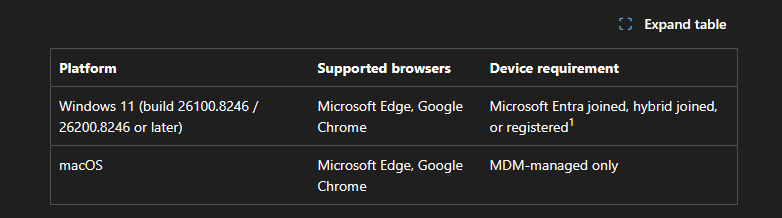
I will be testing this from a Entra Joined, Intune enrolled Windows device with a user that has this CA policy pushed out to them.
Because we’re testing this on a Windows Device, there is a few other steps we have to do. First we need to create a registry key on Windows Device:
[HKEY_LOCAL_MACHINE\SOFTWARE\Policies\Microsoft\BrowserCore]
"EnablePlatformAuth"=dword:00000001Code language: TOML, also INI (ini)
Now another thing they state is that this will only work on Chrome and Edge. For Chrome, install the “Microsoft Single Sign-On” extension from the Chrome Web Store.
If using Edge, the article states “Go to edge://extensions, turn on Allow extensions from other stores, install the Microsoft Single Sign On extension, and confirm it’s enabled.”. Which I guess confuses me, since that toggle is usually already on.
You don’t need to enable it, unless it’s been turned off, you can just go to the “other store” and install the extension, Edge will prompt you to hit “OK” to allow it. Worth double checking on a managed device though, some orgs turn that toggle off on purpose to stop unverified extensions from installing, in which case you’d actually need that step.
Also… when they say “Allow extensions from other stores, install the Microsoft Single Sign On extension, and confirm it’s enabled.” They’re saying without saying it, to go to the Chrome Store and install the Microsoft Single Sign On Extension. Not sure why they just don’t say that… or link to the actual thing. Link here for the one you will use for both Chrome and Edge.
Signed in. It didn’t work.
Registry key set, no SSO extension installed yet, control test. Login to entra.microsoft.com, blocked immediately.
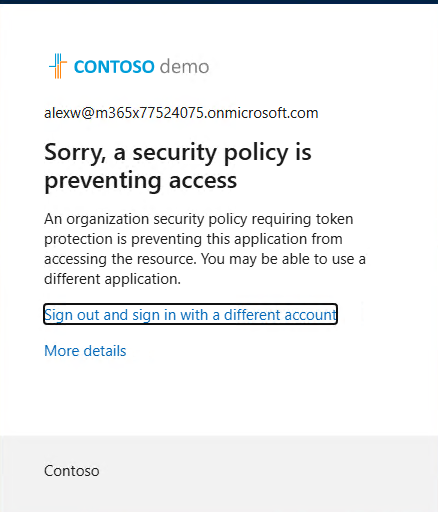
This is to be expected as I do not have the SSO extension installed. Now lets take a look at the sign-in log.
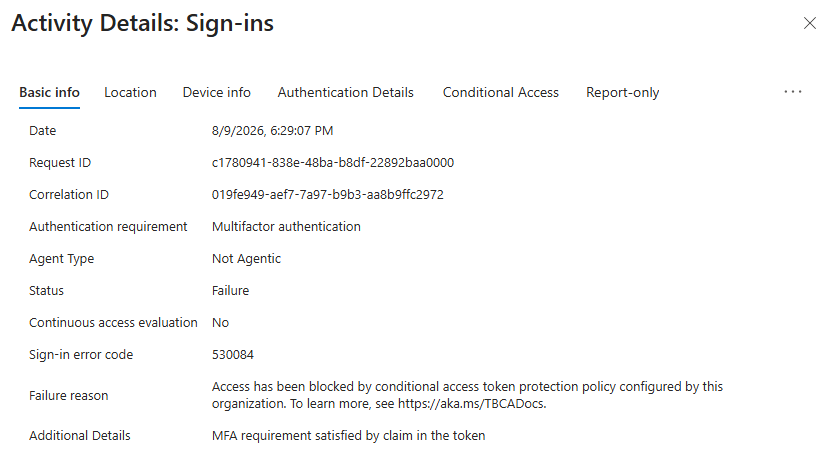
Yup this all looks good, now if we scroll down we should see that the token is unbound and that is why the Conditional Access Policy failed.
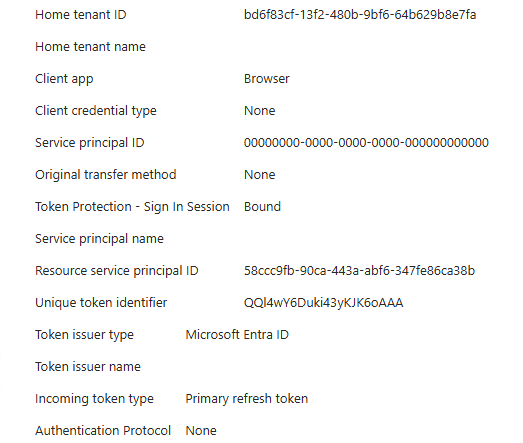
Ummm… right… I guess it was bound. So it must’ve failed for some reason reason right? Lets go take a look at the Conditional Access policy to see what failed.
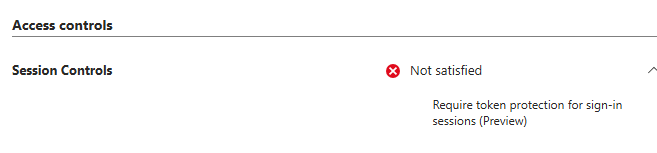

oh… ummm
Alright, lets get Graph involved. I went on over to developer.microsoft.com and queried the sign-in by its correlation ID:
https://graph.microsoft.com/beta/auditLogs/signIns?$filter=correlationId eq '019fe949-aef7-7a97-b9b3-aa8b9ffc2972'Code language: plaintext (plaintext)One result. Not a bundle of requests with the failing one hiding somewhere in the pile, one single record for the whole sign-in. And that one record argues with itself.
Here’s the field the portal actually shows you, tokenProtectionStatusDetails:
"tokenProtectionStatusDetails": {
    "signInSessionStatus": "bound",
    "signInSessionStatusCode": 1008
}Code language: JSON / JSON with Comments (json)
Status says bound. Status code says 1008. And 1008, per Microsoft’s own table, means one thing: unbound, client doesn’t use an authentication broker, extension isn’t installed. There is no version of 1008 that means bound. The word and the number in the same object are describing opposite outcomes.

It gets better the further down you scroll. In authenticationProcessingDetails we get this:
{ "key": "Token Binding Attempted", "value": "True" },
{ "key": "Token Binding Satisfied", "value": "True" },
{ "key": "Root Key Type", "value": "SessionKey" }Code language: JSON / JSON with Comments (json)
Binding attempted, true. Binding satisfied, true. And up top, signInTokenProtectionStatus also reads bound. So that’s four separate fields all reporting the binding went fine, sitting in the same record as a status code that exists solely to say it didn’t, on a sign-in that got blocked.
So which field do I believe? Lets go get one that actually worked and compare.
I installed the SSO extension, waited it out, signed in again, and this time it went through. Pulled that sign-in from Graph the same way. Here’s the token protection block on the successful one:
"tokenProtectionStatusDetails": {
    "signInSessionStatus": "bound",
    "signInSessionStatusCode": 0
}Code language: JSON / JSON with Comments (json)
Bound, code 0, zero meaning no error, an actual bind. So signInSessionStatus reads bound in both the failed sign-in and the successful one. It is the same on the request that got blocked and the request that sailed through. That field, by itself, tells you nothing.
The status code is the part that changes. 1008 on the failure, 0 on the success. That is the field carrying the real answer, and it is the one the portal never shows you.
So why does it say bound on a sign-in that failed?
Honestly, I do not know. And on a preview feature that shipped days ago, I would rather tell you that than dress up a guess. What I can say for certain is that signInSessionStatus can read bound whether the bind actually happened or not, so on its own it is not a field you can trust. The status code next to it is what you should be relaying on.
Here is the practical part, which matters more than the why anyway. The portal shows you Bound and stops there. Look no further and you walk away thinking it worked, on a sign-in that got blocked. The status code is the field that actually tells a real bind from a failed one, and the admin center never shows it to you. You have to go pull the raw sign-in JSON out of Graph. So do not trust that status field. Pull the code.
What you’ve been waiting for!
Does this work against AiTM Attacks?

Lets get to the demo already….
Here I am logging in to a phishing site (Hosted by yours truly). Check the URL.
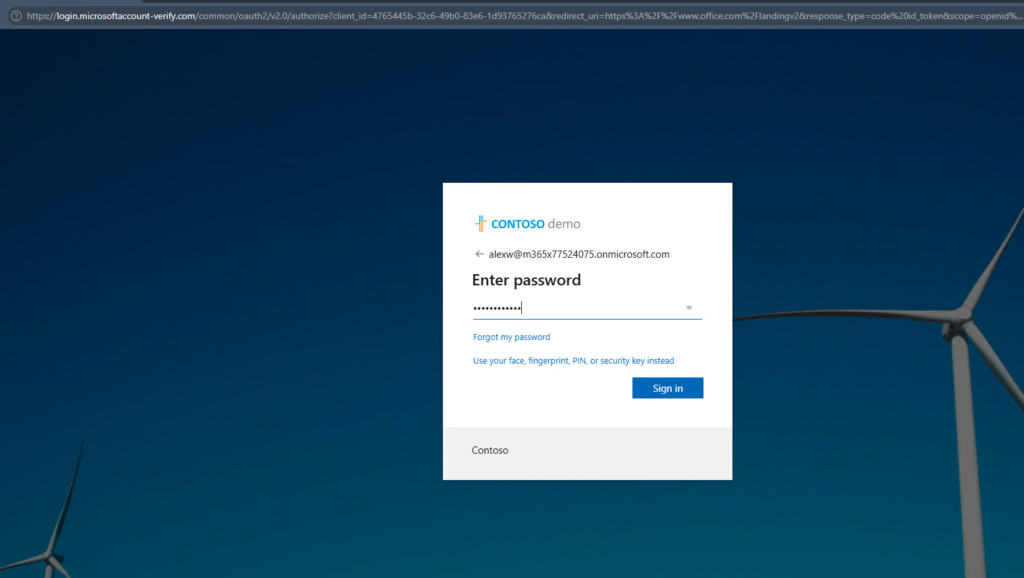
In this case, I was logging into Admin.Microsoft.com. I enter in my username and password then I am prompted for MFA. Then it logs me in. You’ve seen this before and if you want to know more about this type of thing read my article that goes into more detail about this.
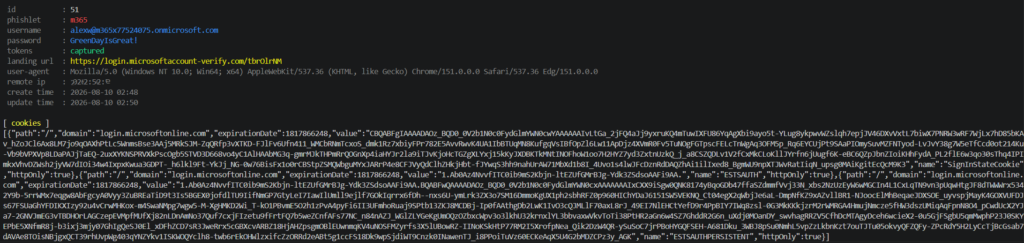
Session was captured, username, password (Punk Rock anyone?), and most importantly session cookie. Lets go head and give that a very gentle yoink.
I’m going to use a cookie injector to inject this session into a different browser on a different computer….. drum roll please…
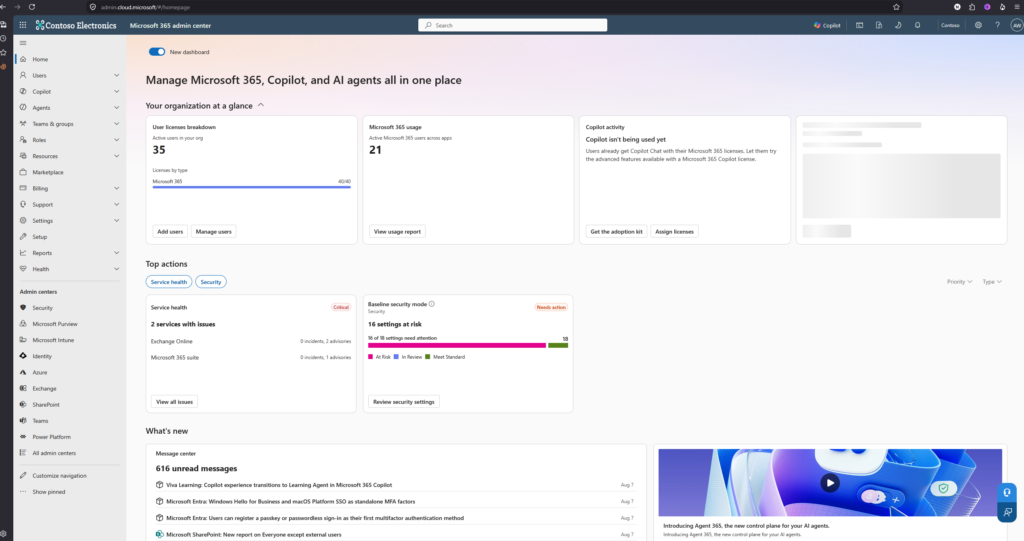
…and I am logged in without putting in the username or password. Just injecting the cookie into the browser.
Okay so no difference there. But this is to be expected, if you look at the top, this is admin.microsoft.com. Which is not covered under the Conditional Access policy since we can only scope this to the Azure Resource Manager, this portal is not covered under that.
Though if we try to navigate to entra.microsoft.com, we get blocked.
Hurray, it did something.
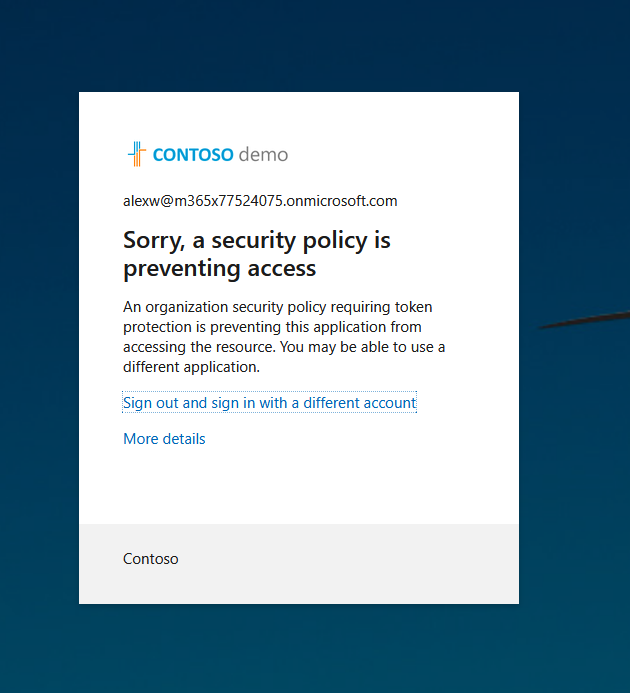
But… is this useful?
Probably not in most organizations. To be able to use this for your privileged accounts, all of these conditions need to be met.
1.) Device needs to be Entra joined, registered or hybrid Joined.
2.) The device needs to be joined//Registered to Entra from that account that you want to protect. So in this case, Alex Wilber is a global admin. I had to join his computer to Entra for this to work. Some orgs are moving to Privileged Access Work Stations which would then solve this issue. But if you don’t have those, this is pretty much dead in the water then.
3.) This only works for certain admin portals. As you saw, I had no problem logging into admin.microsoft.com. But as soon as I tried to go to entra.microsoft.com, it properly blocked me.
The reason is the whole thing is scoped to one resource, Azure Resource Manager, and only five apps are supported: the Azure portal, Intune admin center, Entra admin center, Microsoft Engage Center, and Microsoft Engage Hub. That is the entire list. Anything else that talks to ARM does not get protected, it gets blocked outright when the policy is on.
And the list of what gets blocked is longer than the list of what works. The Microsoft 365 Security and Compliance Center, Power BI, Power Platform admin center, Azure Data Factory, a whole pile of them, all on the blocked side.
So realistically, this is not going to work most of the time. The list of apps it blocks is longer than the list it protects. You only get five supported apps, and everything else that touches Azure Resource Manager gets blocked outright the moment you turn the policy on.
It is not scoped to the portals that matter, it is scoped to one resource, and five apps happen to call it. That is how the Security and Compliance Center, an actual admin console, ends up on the blocked list while a support portal ends up on the supported one. If you would like to take a look at some other AiTM attack mitigations take a look at my other article AiTM attack mitigation in M365 – Part 1
Side note, this probably explains why the Microsoft article is misleading in certain areas.

So what did we learn today?
1.) Browser Token Protection is real now, in preview, and it is scoped to exactly one resource, Azure Resource Manager. Five apps are supported, and everything else that touches ARM gets blocked outright when you enforce, so the list of things it breaks is longer than the list it protects.
2.) The whole thing only works if the privileged account you are protecting is the account that joined the device to Entra. No Entra join from that user, no bound token, no protection. For most orgs without Privileged Access Workstations, that alone puts this pretty close to dead in the water.
3.) Alexander the Great never lost a battle in roughly fifteen years of campaigning. The only thing that finally stopped him was not an enemy, it was his own exhausted army flatly refusing to march any further east at a river in India in 326 BC.
4.) The portal’s “Token Protection – Sign In Session” field will happily tell you Bound on a sign-in that got blocked. That word alone means nothing. The status code sitting next to it in the raw sign-in JSON, 1008 versus 0, is the field that actually tells you whether the bind was real, and the admin center never shows it to you.
5.) AiTM still works fine against every admin surface this feature does not cover, which right now is most of them. A stolen admin.microsoft.com session injected into another browser on another machine walked right in, because Token Protection was never in that path to begin with.
6.) When Alexander’s warhorse Bucephalus died, he founded a city and named it after him. He then did the same thing for his dog, Peritas, which he had raised himself. So the man conquered the known world and still found time to name two cities after his pets.
7.) This is one layer, and a narrow one. It does not cover your mailboxes in a browser, it does not cover most of your admin portals, and it does not replace anything you already have. You still layer your controls and force the attacker to get lucky multiple times in a row, then apply least privilege so the blast radius stays small when someone eventually does.